
Docking Stations & USB-C Hubs for Hybrid Teams Explained
- Kamran Hussain
- 6 hours ago
- 8 min read

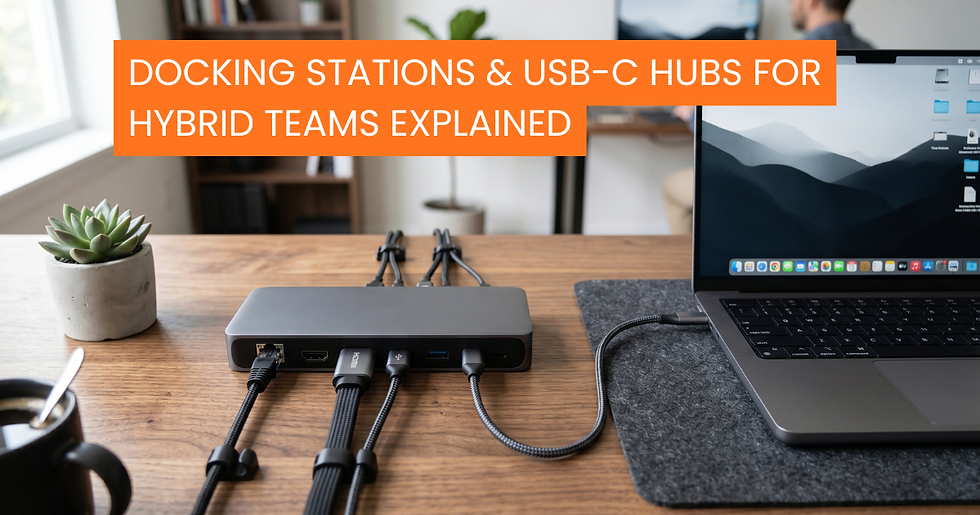
Hybrid work didn't just change where people sit. It changed how every laptop in your business has to connect to everything else. The same machine now plugs into a kitchen table on Tuesday, a hot desk in Sandyford on Wednesday, and a meeting-room HDMI cable on Thursday. Nobody warned IT this was coming, and most fleets weren't bought for it.
The small piece of kit sitting between the laptop and the rest of the desk the docking station or USB-C hub has quietly become one of the most consequential purchases in a hybrid setup. Get it right and a user plugs in one cable and everything just works: two monitors, keyboard, mouse, wired Ethernet, charging, headset. Get it wrong and you've got a help desk ticket about external monitors three times a week, every week.
This guide walks through what actually matters when choosing docks and hubs for a hybrid team in Ireland: the specs worth checking, the compatibility traps that cost time, and the buying calls that hold up across a fleet rather than for one lucky user with a MacBook Pro.
Why the Old "One Laptop, One Desk" Model Stopped Working
For years, the assumption was simple. You bought a laptop, you handed it to someone, and that person sat at the same desk five days a week with a monitor and keyboard already wired in. Hybrid work has broken that pattern at every Irish company we deal with.
CSO data on remote and hybrid working in Ireland shows a sustained shift toward split-location working since 2020, and that hasn't reversed. Most office-based teams now spend two or three days at home and the rest in shared workspaces. The hardware implication is bigger than people realise. A single user now needs a working setup in two places, often with different monitors, different peripherals, and different cabling and the laptop has to slot into both without IT touching it.
That's the job a dock or hub does. It collapses the chaos of half a dozen cables into one connection, so the laptop becomes interchangeable across desks. The question isn't whether you need them. It's which kind, at what spec, and how many.
USB-C Hub vs Docking Station: The Real Difference
These terms get used interchangeably, and they shouldn't be. The difference matters when you're spending money.
A USB-C hub is typically a small, bus-powered adapter. It plugs into one USB-C port on the laptop and gives you a handful of extras: an HDMI port, a couple of USB-A, sometimes an SD card slot, sometimes Ethernet. It draws its power from the laptop itself, so it can't charge the machine and its display output is limited. Hubs are great for travel, occasional use, or a kitchen-table day. They're not the answer for a permanent desk.
A docking station is a separate device with its own power supply. It connects to the laptop via USB-C or Thunderbolt and provides full desktop functionality: dual or triple displays, Gigabit (or 2.5G) Ethernet, multiple USB ports for peripherals, audio, and crucially, Power Delivery back to the laptop so the same cable charges the device while it's docked. This is what belongs on a desk someone uses every week.
The rough rule we give clients: hubs are personal accessories, docks are infrastructure. If a user has a fixed home office or a hot desk they return to, they need a dock. If they need something to throw in a bag for client visits, a hub does fine.
Power Delivery: The Spec Most People Overlook

Power Delivery (PD) wattage is where most poor purchases happen. The dock spec sheet says "USB-C Power Delivery" and people assume that's enough. It often isn't.
Modern business laptops fall into rough PD bands:
Ultraportables and most 13- to 14-inch business machines: 65W
Standard 14- to 15-inch performance laptops: 90W
16-inch workstations, mobile workstations and high-end MacBook Pros: 100W to 140W
If your dock delivers 65W and your user has a 90W laptop, the laptop will charge slowly under load sometimes it'll even drain the battery while plugged in if the user is running a video call and a couple of monitors. That looks, to the user, like the dock is broken. It isn't. It's just underpowered.
Match dock PD output to the highest-wattage laptop you'll plug into it, not the lowest. For a mixed fleet, 90W is the sensible floor. For anything with a discrete GPU or any kind of workstation footprint, you want 100W or above. The USB-IF (USB Implementers Forum) certification on the product is the cleanest way to confirm what a dock actually delivers, rather than relying on marketing copy.
Display Output and Bandwidth: What Your Dock Actually Carries
Two monitors, both 4K, both at 60Hz. Sounds simple. Whether the dock can actually do it depends on the interface standard.
A standard USB-C dock using DisplayPort Alt Mode carries DisplayPort signals through the USB-C cable. Depending on the laptop's implementation, this can be limited to a single 4K display, or sometimes two 1440p displays. It's not the dock's fault it's the bandwidth the laptop's USB-C port can hand over.
Thunderbolt 4 docks (and the newer USB4 generation) carry significantly more bandwidth up to 40 Gbps which is enough for two 4K monitors at 60Hz comfortably, plus high-speed storage and Ethernet on the same cable. If your team works with two external displays as standard, Thunderbolt is the safer call.
Where laptops without Thunderbolt support need to drive multiple monitors, docks use a technology called DisplayLink, which compresses the video signal over USB. It works, but it's CPU-driven, so on lower-end machines you'll see a small performance hit, and certain protected content (DRM video, some video-conferencing screen-shares) can have issues. DisplayLink docks are a perfectly good answer for office productivity workloads. They're not the right choice for video editors or anyone doing colour-critical work.
VESA, who maintain the DisplayPort standard, publish straightforward bandwidth tables that confirm what a given DisplayPort version can carry. It's worth checking those once before standardising on a model.
Hot-Desking and Shared Desks: What to Standardise
Hot desking only works if every desk is identical. The minute one hot desk has a different dock from the one next to it, users start hunting for "their" desk and the whole flexibility benefit collapses.
For shared spaces, three principles tend to hold:
Standardise the dock model across every hot desk in the office. Same brand, same firmware version, same monitor cables already in place. A user should be able to sit at any free desk, plug in one cable, and start working in under a minute.
Match the monitors at every desk. If half the desks have 1080p screens and half have 4K, users will start scrolling text messages from the IT manager. Pair this decision with the existing business monitor guidance for ergonomics and productivity.
Make the laptop the only variable. The dock, monitors, keyboard and mouse stay at the desk. The user brings the machine. That's the whole point.
The Display Screen Equipment requirements set out under Ireland's Safety, Health and Welfare at Work (General Application) Regulations 2007 apply to hot desks the same as they do to fixed workstations. A user who's at a shared desk three days a week is still entitled to a setup that meets DSE standards. The dock and monitor combination is doing the heavy lifting on that compliance.
Compatibility Traps: Thunderbolt, USB4, DisplayLink, MFi

Here's where procurement decisions quietly come apart. A few traps worth knowing about before you commit to a fleet rollout.
Thunderbolt 3 vs Thunderbolt 4 vs USB4. These are all 40 Gbps and use the same physical USB-C connector. They're not all the same in practice. Thunderbolt 4 raises the minimum requirements for daisy-chaining, monitor support and power. USB4 is the open standard that overlaps with Thunderbolt 4 but doesn't guarantee every Thunderbolt feature. If you've got a mixed Intel and AMD laptop fleet, watch this carefully some AMD laptops have USB4 but not Thunderbolt certification, and a small number of high-end Thunderbolt docks won't work fully on them.
Mac compatibility. Apple Silicon MacBooks (M1, M2, M3, M4) handle external displays differently from Intel Macs. The base M-series chips support only one external display natively. To drive two or more, you need either a Pro/Max chip or a DisplayLink-based dock with the macOS driver installed. This catches people out constantly.
Firmware updates. Business docks ship with manageable firmware. Ignoring updates is a quiet source of monitor drop-outs, USB-C handshake failures and weird Ethernet behaviour. Build dock firmware into the same patch cycle as the rest of the fleet.
Buying for an Irish Hybrid Team: A Practical Checklist
When clients ask us what to specify across a hybrid rollout, the call usually comes down to a short list of questions:
What's the highest-wattage laptop in the fleet? That sets the minimum PD output for every dock.
How many external monitors per user, at what resolution and refresh rate? That tells you whether USB-C DP Alt Mode is enough, whether Thunderbolt is necessary, or whether DisplayLink is the practical answer.
Are users on Mac, Windows, or both? If both, you need a dock generation that handles both cleanly, with the right drivers available.
Is the dock for the office, the home, or both? Some companies issue one dock to each user at home and have a second pool standardised across the office. Others let the office stay docked and ship home-office docks only.
Does the warranty match the laptop refresh cycle? A three-year laptop warranty paired with a one-year dock warranty creates a service mismatch you'll feel in year two.
If you want a sounder framing of how docking decisions fit alongside the rest of the B2B IT hardware buying picture in Ireland, the wider buying guide pairs well with this one.
Talk to a Procurement Team, Not a Reseller
The right dock isn't the most expensive one. It's the one that matches the laptops you've already deployed, the monitors people sit in front of, the way your offices are set up, and the way your team actually moves between home and desk.
At DataDirect, we work as an extension of your procurement function. Tell us the laptops, tell us the monitors, tell us how many hot desks need outfitting, and we'll come back with a docking spec that fits across Dell, Lenovo, HP, Apple, and the major dock and hub vendors. Get in touch for a quote, or browse business hardware and accessories on our shop to see what we stock.
For more procurement guidance written for Irish business buyers, the DataDirect blog covers laptops, monitors, networking, lifecycle and budgeting in the same plain-English voice.
Frequently Asked Questions
1. What is the difference between a USB-C hub and a docking station? A USB-C hub is a small, bus-powered accessory that draws power from the laptop and adds a few extra ports useful for travel and occasional use. A docking station has its own power supply, supports dual or triple monitors, charges the laptop via Power Delivery, and is built for a fixed desk. Hubs are personal accessories; docks are office infrastructure.
2. Do I need a Thunderbolt dock or is USB-C enough? A standard USB-C dock using DisplayPort Alt Mode is fine for one external 4K monitor or two 1440p screens, plus light peripherals. If your team uses two 4K monitors at 60Hz, fast external storage, or high-bandwidth peripherals on the same cable, a Thunderbolt 4 or USB4 dock is the better call because of the 40 Gbps total bandwidth.
3. How many monitors can a USB-C dock run at once? It depends on the laptop, not just the dock. Base-model Apple M-series MacBooks support only one external monitor natively without a DisplayLink dock. Most modern Windows business laptops with USB-C DP Alt Mode handle one to two displays; Thunderbolt 4 laptops handle two 4K screens comfortably. Always confirm against both the laptop's spec sheet and the dock's certified output.
4. Which docking station works with both Mac and Windows laptops? Look for a Thunderbolt 4 or universal DisplayLink-based dock that publishes drivers for macOS and Windows alike. Several major dock vendors (the ones we stock at DataDirect) certify their docks for cross-platform use. The trap to avoid is Thunderbolt-only docks paired with non-Thunderbolt AMD laptops they may work but won't expose every feature.
5. How do I choose the right docking station for our hybrid team in Ireland? Start with the highest-wattage laptop in your fleet, the number and resolution of monitors per user, and whether you're outfitting home offices, hot desks, or both. Standardise on one model across all shared desks so users can sit anywhere and plug in. If you'd like that worked out for you against your existing kit, contact DataDirect and we'll spec it across your fleet.




Comments